Git for Beginners: Basics and Essential Commands

What is Git
Git is a version control system that tracks changes in your code or files over time , which makes it easy for teams to collaborate easily . It is a distributed system in which every developer gets the complete copy of the entire project history on their own computer , so you can work commit changes and sync with others .
Why git is used
Git is mainly used to manage and track changes in code or files efficiently , preventing data loss , enabling smooth teamwork and supporting flexible development workflows . Other uses are :
Collaboration
Change Tracking
Backup and recovery
Branching for Experimentation
History and Accountability

Repositories
A repository is the project’s home folder that holds all the files , all the records of the changes in the hidden .git folder . You can create it with git init command .
Commit
Commit is like the labelled photo of your project at a certain instance . It saves exactly what files are changed with the message . you can use git commit -m “message” for a commit .
Branch
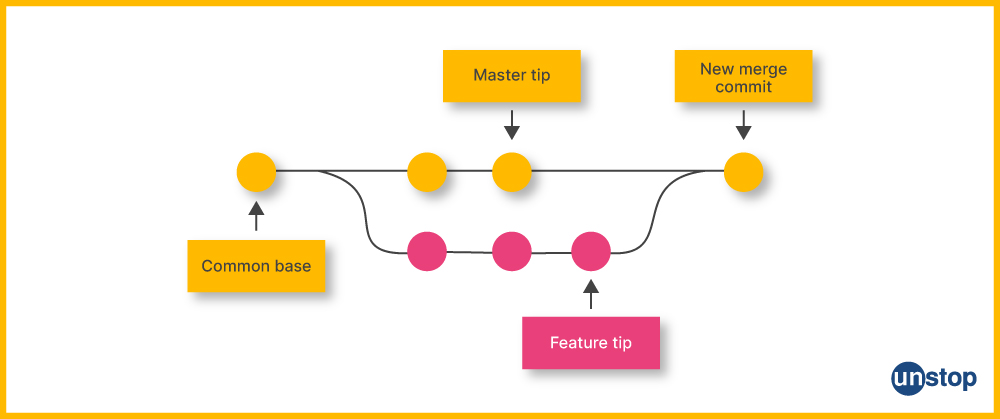
Branch is like the separate path for a project where you can experiment things without messing up the main code . you can make new branch with git checkout -b new-branch, add commits there, then merge it back to combine changes with main branch .
HEAD
HEAD points to where you are right now, usually the latest commit on your current branch—it moves forward when you commit. Switch branches and HEAD follows; detach it to check old versions directly, helping Git know where to save your next changes .
Git basics and core technologies
Git basically revolve around tracking of files which uses simple commands to save snapshots , experiment safely and collaborate with others .
Basic workflow
Download git from the official website then run git —version in any code editors terminal to check the version installed . Navigate to your project folder then run git init to create the local repository with a hidden .git folder that stores all the history , and configure your identity once with git config --global user.name "Your Name" and git config --global user.email "your.email@example.com".
Staging Area
We use git add filename.js for specific files and git add . to stage all the files in the staging area . You can check the status of of the files - modified , tracked , untracked , with the help of git status
Commiting Changes
git commit -m ”commit name'“ is used to create a permanent labelled checkpoint with a unique hash id . you can view history with git log command , to see the timeline of the commits .
Recap
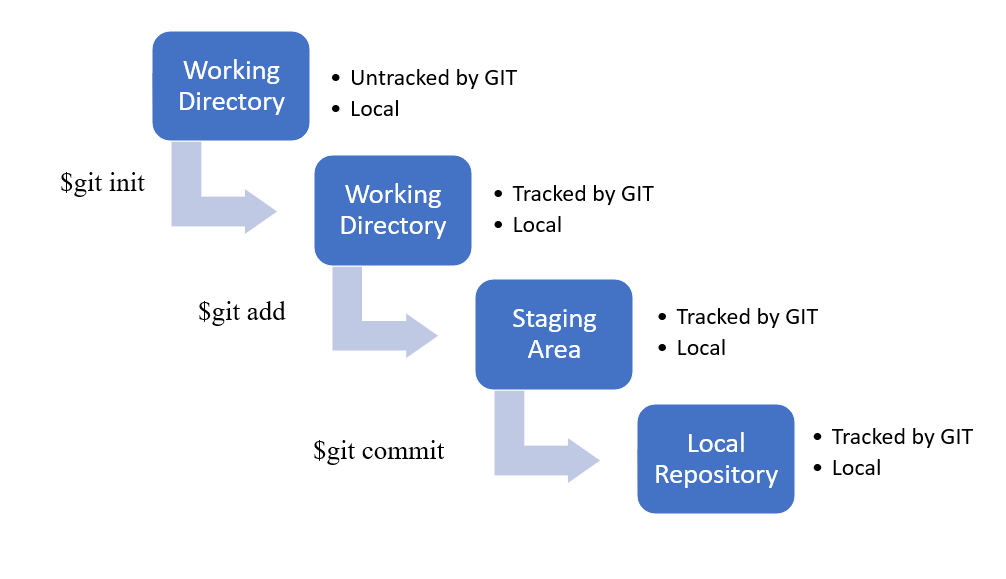
Working directory : This is the files/folders where you write/edit code in your project .
Staging Area : This is the intermediate zone holding prepared changes before commit .
Repository : This is the full project storage area with
.git, local files .
Common git commands
These git commands are commonly used :
Setup Commands
git init: Creates a new local Git repository in your current directory, initializing the.gitfolder to track changes—run this first in a new project folder like your game recommendation system.git clone <URL>: Copies a remote repository (e.g.,git clonehttps://github.com/yourusername/weather-app.git) to your system , giving you the full history locally for offline work.git config --globaluser.name"Your Name"andgit config --globaluser.email"email@example.com": Sets your identity permanently for all commits across projects.
Status and Staging
git status: Shows modified, staged, or untracked files, check this often before committing.git add <file>orgit add .: Stages specific files (e.g.,git add src/App.js) or all changes for the next commit, preparing your Gemini API edits.git rm <file>: Removes a file from tracking and staging, useful for deleting unused components without history loss.
Committing and History
git commit -m "Descriptive message": Saves staged changes as a snapshot (e.g.,git commit -m "Integrated GIPHY API for weather app"), creating a checkpoint you can revert to.git log: Displays commit history with hashes, authors, and messages; add--onelinefor a compact view of your project timeline.git diff: Compares changes between working directory, staging, or commits (e.g.,git diff HEAD~1), highlighting exact line additions in your project.
Branching and Merging
git branch: Lists local branches, with*marking the current one like "main" or "feature/gestures".git checkout -b <branch>orgit switch -c <branch>: Creates and switches to a new branch (e.g.,git checkout -b feature/login) for safe experimentation.git merge <branch>: Integrates changes from another branch into the current one, resolving conflicts if your teammate updated the same React Hook.
Remote Operations
git remote -v: Views linked remote repos like your GitHub origin for team sharing.git push origin <branch>: Uploads local commits to GitHub (e.g.,git push origin main), sharing your career guidance system updates.git pull origin <branch>: Fetches and merges remote changes, syncing teammate contributions without overwriting your local work.
Undo and Recovery
git checkout -- <file>: Discards unstaged changes in a file, reverting accidental edits to your SQL queries.git stash: Temporarily shelves uncommitted changes (e.g., mid-hackathon tweaks), apply later withgit stash pop.git reset --hard HEAD~1: Rolls back to the previous commit, erasing recent mistakes but preserving history.
Conclusion
Git is a powerful version control system that helps developers track changes, collaborate efficiently, and manage code safely.
Understanding core concepts like repositories, commits, branches, and the staging area builds a strong foundation for real-world development.
Mastering basic Git commands early makes teamwork smoother, reduces mistakes, and improves overall productivity.